
Can You Get Ungated for an Amazon Brand? How to Check in 2 Minutes (2026)
Before paying for any Amazon ungating service — including ours — there is a 2-minute check inside Seller Central that tells you whether your account is even eligible to apply for the brand you want to sell. This single check can save you from paying for a service that mathematically cannot succeed, because the restriction is at the account level and no third party can override it.
This guide walks through the exact path in Seller Central with real screenshots, explains the three possible outcomes you'll see, and clarifies what each one means. The guide is based on AMZDOC LLC's day-to-day experience helping Amazon sellers since 2019. We will tell you honestly when ungating is not possible — because if it isn't, no service can change that.
Quick answer: Before applying, check your eligibility in Seller Central: a registered business account in the marketplace country, healthy account metrics, and the ability to provide genuine invoices from an authorized supplier in the quantity Amazon requires (often 10 units, sometimes 100–400+), dated within the last 180 days. Meeting these makes approval far more likely.
Why This Check Matters Before You Pay
Account-level restrictions on Amazon are not negotiable through paid services. Whether the issue is account age, sales history, prior performance flags, or a brand-specific block from the rights holder, the path forward is operational — not procedural. A reputable ungating service will refuse the case rather than take payment for work that cannot succeed.
Unfortunately, not every service does this. Sellers regularly pay $200-$1,500 to providers that promise "guaranteed approval" before checking whether the account is even allowed to submit. Two minutes in Seller Central separates the legitimate cases from the impossible ones.
The Eligibility Check, Step by Step
Step 1 — Open Seller Central
Go to sellercentral.amazon.com and log into your Professional seller account. Individual accounts cannot apply for brand ungating — Professional plan is required.
Step 2 — Switch to the classic Seller Central interface
In the top right, you will see a toggle labeled New Seller Central. Turn it off. The classic interface displays category and brand limitations more clearly during this check. The New Seller Central interface works too, but the screenshots in this guide use the classic view.
Step 3 — Open the menu, navigate to Catalog → Add Products
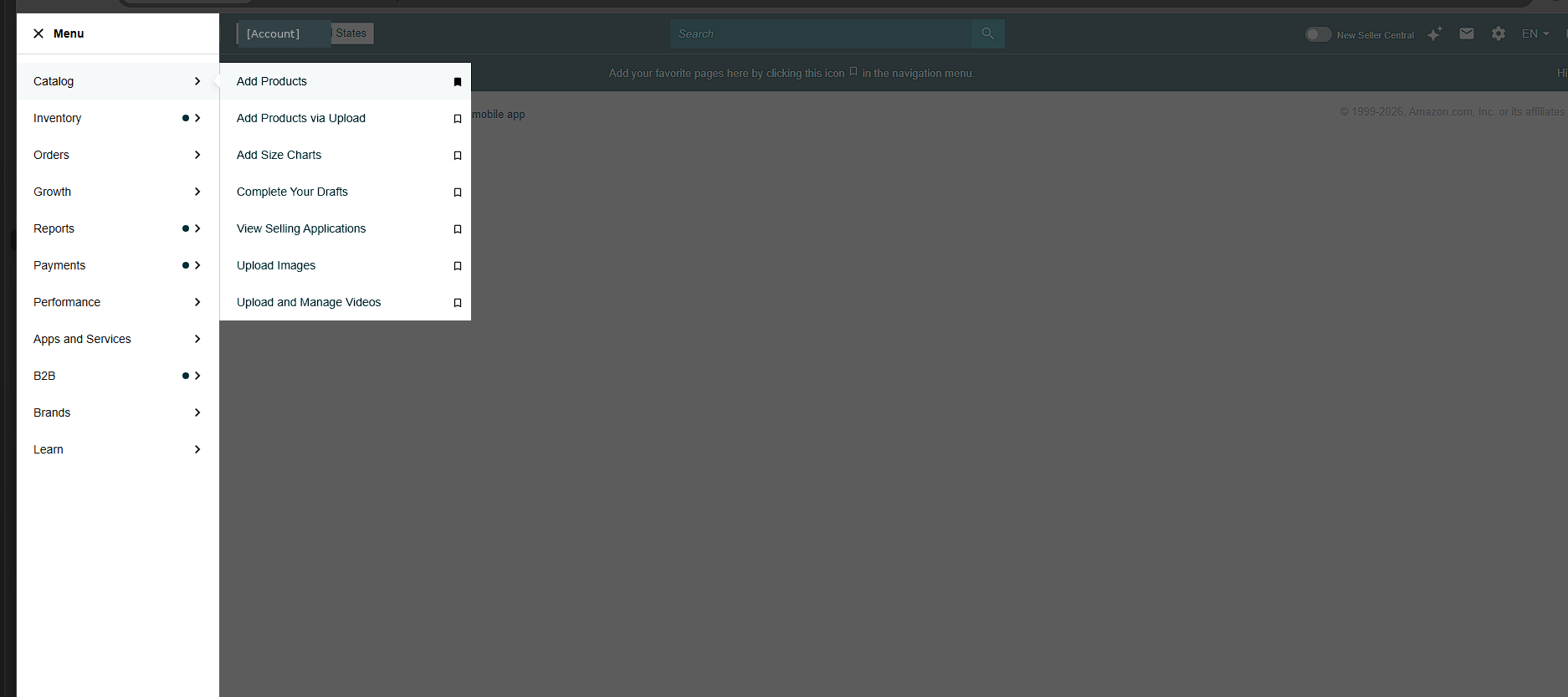
Click the hamburger icon (☰) in the top-left of Seller Central. Hover over Catalog and click Add Products.
Step 4 — Choose the Search method on List Your Products
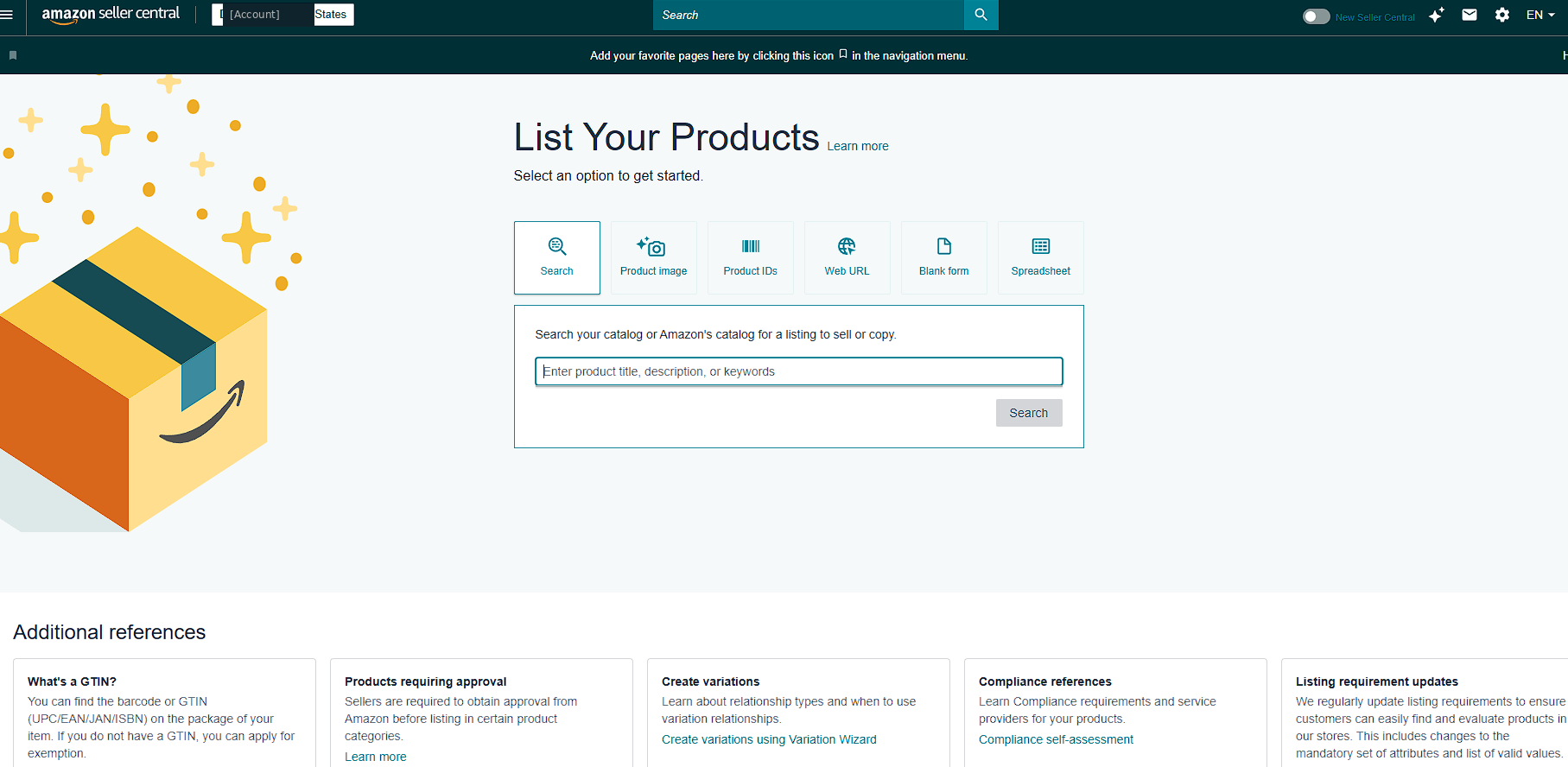
The List Your Products page shows six methods for adding a product. For our check, click the Search tile (it is selected by default in the screenshot above). In the search field that appears, type the brand name you want to check. Click Search.
Step 5 — Pick a product from the brand's catalog
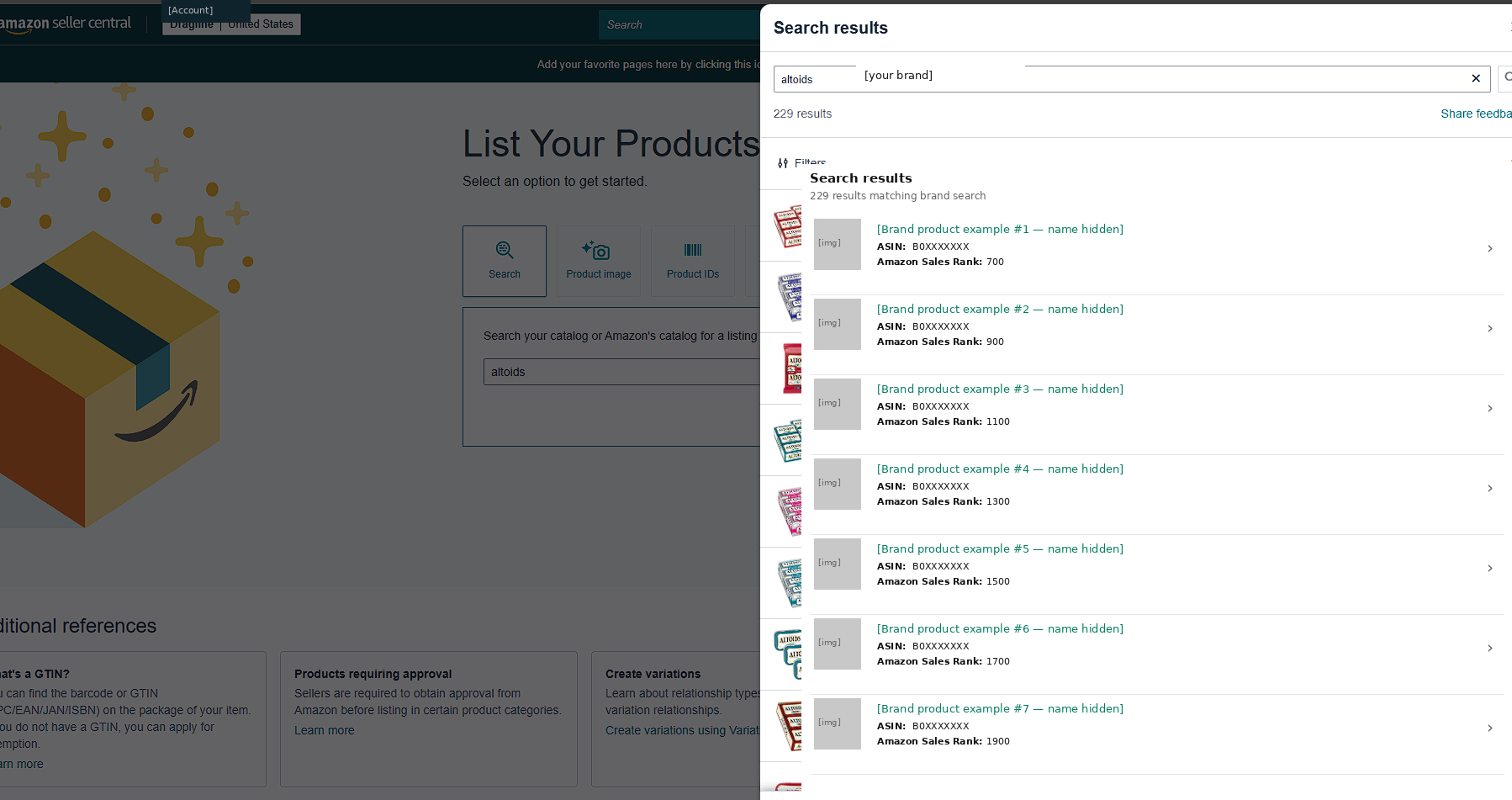
Amazon shows a panel of matching products from the brand's catalog. Click on any product — typically the first result is fine for the eligibility check.
The Decision Point: What the Buttons Mean
The Product Information page that opens after the click is where the answer lives. There are two possible button states, and they have completely different meanings.
Outcome A — "Apply to sell" button is visible
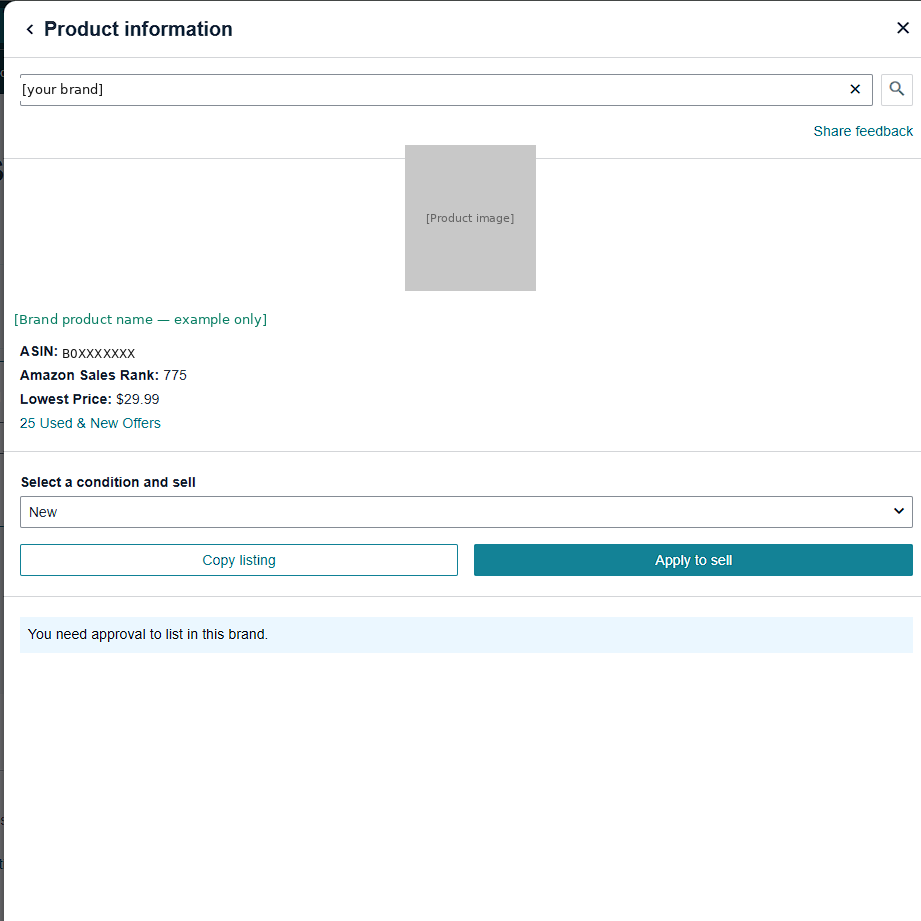
Two buttons appear: Copy listing on the left and Apply to sell on the right. The presence of Apply to sell means Amazon's system, at first check, will allow your account to submit an application for this brand. This is necessary but not sufficient — the next step (clicking Apply) is where final eligibility is confirmed.
Outcome B — Only "Copy listing" appears, no Apply to sell button
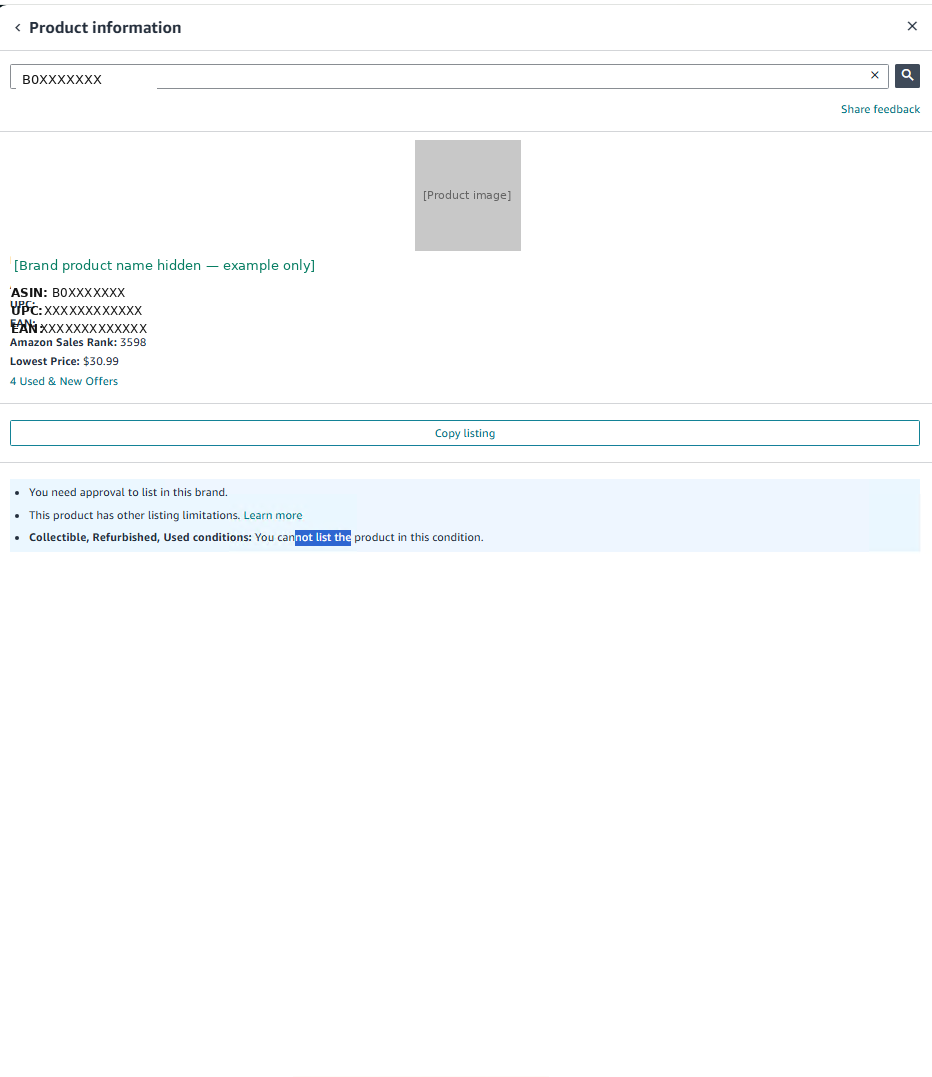
If the page shows only Copy listing, plus messages such as "You need approval to list in this brand" or "This product has other listing limitations" — and no Apply to sell button — your account currently cannot submit an application for this brand. This is an account-level restriction set by Amazon. No third-party ungating service can change this, including AMZDOC. Anyone who claims they can is misleading you.
The Critical Step Most Sellers Skip: Click Apply to Sell
Even when the Apply to sell button is visible, the eligibility check is not complete. Click the button and observe what happens next. There are two distinct sub-outcomes.
Outcome A1 (eligible) — Selling Application form opens
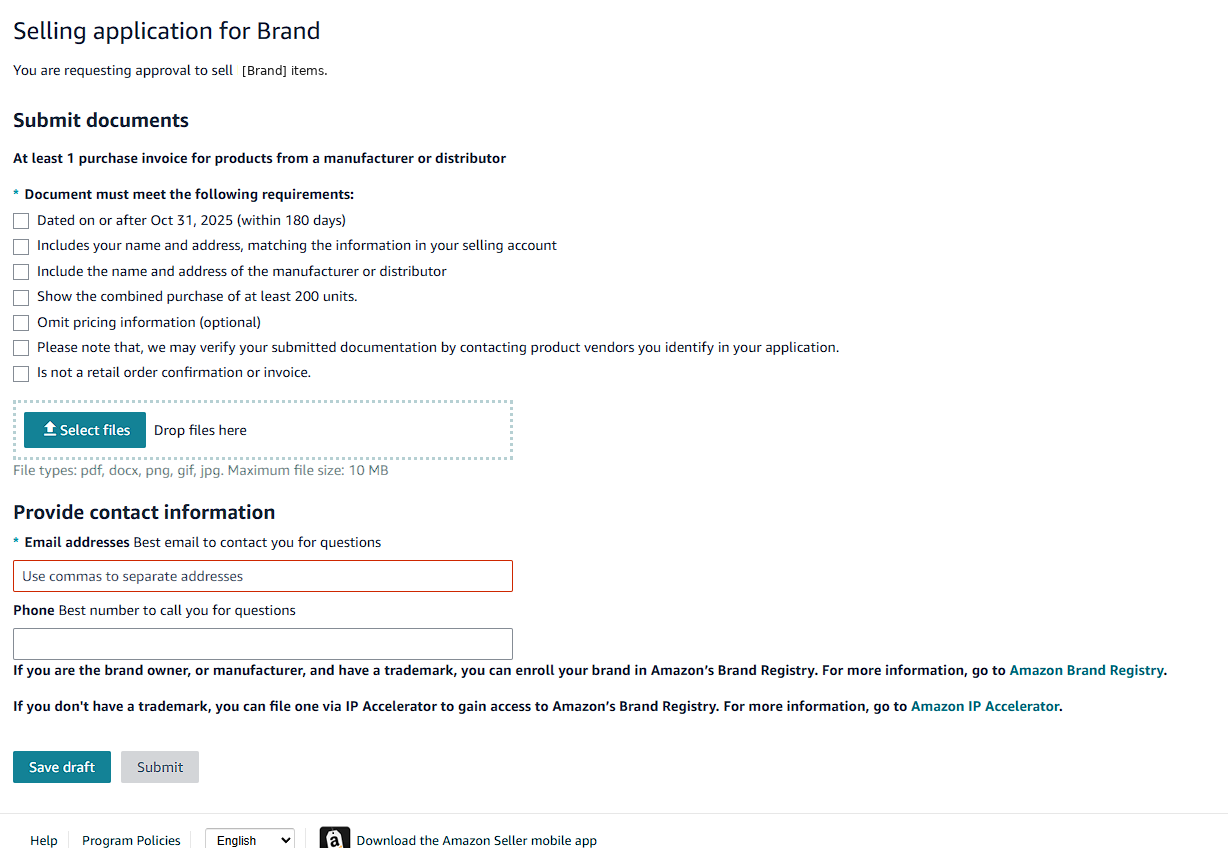
The Selling Application form opens. You will see specific requirements (the example above shows 180-day invoice window, name and address matching, manufacturer details, minimum quantity), file upload via Select files, and contact information fields. The presence of an active upload field is the practical confirmation that your account can submit. This is the case where AMZDOC can help — we handle product sourcing, invoice procurement, documentation, and submission as part of our service.
Outcome A2 (not eligible) — rejection without upload
In some cases, the Apply to sell button is visible, but after clicking it Amazon shows an immediate rejection or restriction message without giving you a Selling Application form to upload anything to. This is functionally the same as Outcome B — an account-level block. No service can override this either. The only difference from Outcome B is that the block is not visible until after the click.
This is why "the button is there" is not enough. The reliable test is: did Amazon open the upload form?
Real Document Requirements (What You'll See on the Form)
When the Selling Application form opens, the requirements vary somewhat from brand to brand. The example screenshot above shows a typical pattern:
- At least 1 purchase invoice from a manufacturer or distributor
- Dated within the past 180 days (some categories accept up to 365 days) (Amazon shows a specific date threshold)
- Name and address matching the information in your seller account
- Manufacturer or distributor name and address on the invoice
- Combined purchase of a minimum quantity — this number varies significantly: some brands require 10 units, others 100, 200, 300, or 400+
- Pricing information may be omitted (optional)
- Documentation that is not a retail order confirmation (no Walmart/Costco/retail receipts)
- File types accepted: pdf, docx, png, gif, jpg — maximum 10 MB
- Email and phone for follow-up questions
The minimum quantity is the most variable item. Always read what your specific application form requires — do not assume from another brand's requirement. AMZDOC sources products to meet the exact quantity required by the brand in question.
Amazon's Selling Application form also notes that they may verify submitted documentation by contacting product vendors you identify in your application. This is why fabricated invoices fail: Amazon's verification reaches the supplier directly, and any inconsistency typically results in permanent account closure.
What to Do if You Are in Outcome B or A2
If your account currently cannot apply for the brand you want, paying any service is not the path forward. Here is what actually moves the needle:
- Improve account health metrics — Order Defect Rate (ODR), Late Shipment Rate, Pre-Fulfillment Cancellation Rate. Amazon's published thresholds: ODR < 1%, Late Shipment Rate < 4%, Pre-Fulfillment Cancellation Rate < 2.5%.
- Build sales history in open categories — products in unrestricted categories that you can list and sell normally. Six to twelve months of clean activity changes how Amazon evaluates your account for new brand applications.
- Resolve any open performance issues or policy violations — the Account Health Dashboard shows what's pending. Each one closed strengthens future applications.
- Try a different brand in the same category first — sometimes Amazon allows similar but non-identical brand requests. Building a track record in the category often opens the original brand later.
- Wait 3-6 months and recheck — Amazon's eligibility recalculates as your account matures.
Why We Tell You This Honestly
AMZDOC LLC is a US-registered consulting firm that has handled over 1,000 Amazon seller cases since 2019. We make money when we successfully help with cases that can be helped. Cases that cannot be helped — Outcome B and A2 above — bring no revenue and no benefit to anyone. Telling sellers this upfront is both ethical and operationally smart. We would rather refuse a case for free than take payment for work that cannot succeed.
If you ran the check above and saw Apply to sell → Selling Application form with Select files, contact us. We handle product sourcing, invoice procurement from authorized distributors, documentation preparation matching Amazon's exact requirements, and submission. Our flat fee is $350 per brand or category. See the full ungating service details.
Ran the check and saw the upload form?
That is the case AMZDOC handles. Free initial review on Telegram — we tell you the timeline and the exact documentation needed before you commit to anything.
Free Case Review on Telegram →Frequently Asked Questions
How do I know if my account can apply for a specific Amazon brand?
What does it mean if Amazon shows "Apply to sell" but rejects when I click it?
What invoice requirements does Amazon show for brand ungating?
Why does my account not have Apply to sell for some brands?
Should I switch to old Seller Central before checking?
Related Resources
- AMZDOC Amazon Ungating Service — full process and pricing
- Amazon Section 3 Suspensions: Complete Guide
- Amazon Restricted Categories: Complete Guide
- Amazon Account Health Rating: How to Monitor and Maintain It
- Why Your Amazon Ungating Application Keeps Getting Rejected
Disclaimer: This article is for informational purposes only and does not constitute legal, financial, or professional advice. Information is based on Amazon's current published policies and AMZDOC LLC's professional experience as of April 2026. Amazon may change its policies, processes, or interface at any time. AMZDOC LLC does not guarantee any specific outcome — including approval of any selling application. All decisions regarding seller account category and brand access are made solely by Amazon.com, Inc. Screenshots are from real Seller Central views with brand and account names redacted; products shown are examples only.
AMZDOC LLC is registered in the State of California (Sacramento). AMZDOC LLC is not affiliated with, endorsed by, or sponsored by Amazon.com, Inc. Amazon, Seller Central, and related marks are trademarks of Amazon.com, Inc.